N I N E Q U A D R A T BY:IIEN SOLIHIN
Tampilkan postingan dengan label Tutorial Flash. Tampilkan semua postingan

Tutorial Flash Animation Wave Flag

  • Ninequadrat
  • Labels:
  • Video Tutorial how to make animation waving flag with Flash


    Play Video Flash Tutorial


    »»  READMORE...

    Tutorial Flash Banner

  • Ninequadrat
  • Labels:
  • create flash banner self creations like this


    right click zoom this flash banner

    create flash banner template for free

    or create simple flash banner self creations


    THE TUTORIAL
    Step 1
    The logic is same creating flash banner with Adobe Flash CS and create flash banner with old Flash 5 version. The most important is output flash banner type file SW F, even easier create simple banner with Flash 5. See picture below :
    1. First create new file then save project by name "tutorial-flash-banner.FL A".
    2. Then select menu Modify > Movie, in window dialog Movie Properties change movie size to width 460 X high 100 pixel. This size for flash banner which will be made.
    Step 2
    1. Use Oval Tool (O) to create object oval or circle
    2. Then create shape in work area circle with red colors, see picture below
    3. Toolbar Fill Color chooser
    4. Double click at number 4 area to change Layer Name "Layer 1" to "CIRCLE RED"
    5. From the result creating this circle then would be seen a single Static Key frame have not been animated. His frame mark by black dot
    Step 3
    1. Use Arrow Tool (V) as standard cursor
    2. Then click in number 2 area, this is Static Frame at Timeline frame 1
    3. Choose menu Insert > Convert to Symbol or by press shortcut keyboard F8
    Step 4
    1. After appearing window dialog Symbol Properties, rename Symbol 1 to CIRCLE RED
    2. Select Behavior to be Graphic symbols type
    3. Then press OK button
    Step 5
    1. The circle after converted to Graphic Symbol
    2. Click at timeline 10th, this is our animation plan moving for circle end animation at timeline 10th
    3. Then select menu Insert > Keyframe or by press shortcut keyboard F6
    4. Mark of timeline after inserting keyframe
    Step 6
    The Logic Flash Animation
    Move object A position to B position
    Step 7
    1. Right click at timeline frame 5th (in between frame number 1st and 10th) then select Create Motion Tween. Then finished motion animation for CIRCLE RED
    2. For test movie press keyboard Enter
    3. Activate looping animation mode from menu Control > Loop Playback. then press Enter to see the result
    Step 8
    1. Click Layer Name CIRCLE RED, this function for select all frame in timeline
    2. Then Right Click at motion line (area number 2) then Select Copy Frames. This command is same function from copy paste like the others.
    Step 9
    1. Create Insert New Layer
    2. Double click Layer Name "Layer 2" and rename layer to CIRCLE GREEN
    3. Then lock Layer Name CIRCLE RED by clicking at dot mark (area number 3 lock or unlock layer)
    4. Right Click at area number 4 then Paste Frames here
    Step 10
    1. At timeline CIRCLE GREEN select first frame (frame number 1st)
    2. Then at the right toolbar from tool Effect and Tab Effect, select drop down menu solid color Tint
    3. And select green color to changing circle color as you want
    Step 11
    Do same again to change color CIRCLE GREEN at frame 10th to be green color like tutorial Step 10
    Step 12
    1. At timeline CIRCLE GREEN select frame number 1st
    2. Then move the circle from A position to B position. The position B is a start moving of CIRCLE GREEN
    Step 13
    1. At timeline CIRCLE GREEN select frame number 10th
    2. Then move the circle from A position to B position. The position B is a end moving of CIRCLE GREEN
    Step 14
    1. Select layer CIRCLE GREEN
    2. Then move drag all timeline CIRCLE GREEN to be end position 20th
    3. Is position timeline frame 20th

    This is end of tutorial how to make simply motion animation flash banner in adobe flash, the result:


    Step 15
    For finishing last step, you can insert much more layer or object symbol animation as you want for the best result like flash banner on top page.
    DOWNLOAD PROJECT
    FLASH BANNER 6.75 KB


    Hopefully Useful!


    This Article Dedicated to My Students 
    Graphic Design and Animation Class 
    Excellent Program, D a a r  E l  Q o l a m - B a n t e n
    »»  READMORE...

    Tutorial Vector

  • Ninequadrat
  • Labels:
  • How to Draw Vector in Flash

    This tutorial is continued from the previous tutorial "How to create Blogger logo in Adobe Flash CS3". To be understand the following this tutorial you must read tutorial before about Drawing Techniques in Flash [read the tutorial before this tutorial].  This is tutorial is logical how to simply and easily make photo vector in Flash 5.

    Result vector from Flash 5
    Not inferior to professional programs are complex vector makers such as Adobe Illustrator, Flash program can also be counted on to make the vector. Her special FLASH 5, with his tools that are still simple, its a user interface view and fast supported use of layering quickly. After the test make vector in Flash 5 is so quckly and easily using this program.

    The Techniques to Make Vector in Flash 5
       1. Understanding Drag Mouse movement on the Line Tool and Cursor changed
       2. Covering every angle lines with perfect to close angle (Close Line to Curve)
       3. Patience in drawing one by one line by line to the results of a detailed result

    ..Hopefully helpful ..
    1. Use Line Tool to create vector line
    2. Photo layer to be make vector
    3. Outline Head Layer is first layer make vector. Create this layer first because head is a difficult piece of body. Create detail of face line will be perfect better his face
    4. Outline Body Layer, create this layer after finished Outline Head Layer to be vector
    The Logic Layering to Make Photo Vector in Flash
    - Outline Head Layer
    - Color Head Layer
    - Outline Body Layer
    - Color Body Layer
    - Photograph
    As principal layering COLOR HEAD layer and COLOR BODY layer is Copy Frame OUTLINE HEAD layer and Copy Frame OUTLINE BODY layer after both layer finished make vectoring and coloring.

    The function from Copy Frame as backup outline layer after draw vector line was finished. So if we will be edited line vector or color vector, event we do not redraw a vector.

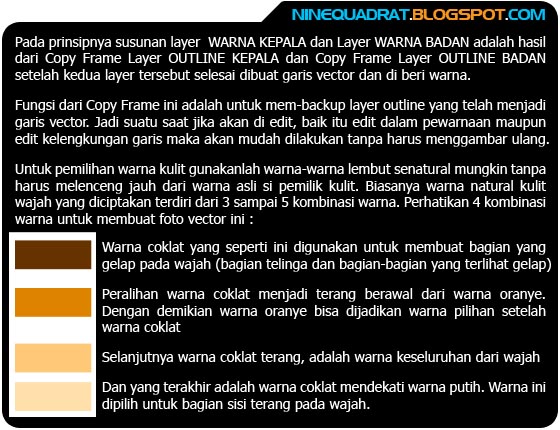
    Best choice for skin color, use soft colors as natural color, same with color skin in photograph. Usually color for skin is consists of 3 to 5 colors combinations. See picture below about 4 color combinations in this vector

    Chose the color of mouth as possibly natural color too for Lips and tongue. Use basic red color from dark red to light red color then chose the color of hair from black to gray color

    Use color for line difference from basic color photograph, like this vector I make this line with red color for User Interface. The choice for Stroke Line use type Hair Line Stroke.

    At the piece of body create detail of body like texture of cloth, folds of cloth, figure of hand etc.

    For maximal coloring can use combination Gradient Color. The Gradient Color will be make a real vector.
    Hopefully Useful!
    Post By: Ninequadrat


    This Article Dedicated to My Students 
    Graphic Design and Animation Class 
    Exelent Program, Daar El Qolam - Banten
    »»  READMORE...

    Tutorial Membuat Logo

  • Ninequadrat
  • Labels:
  • How to create Blogger logo in Adobe Flash CS3


    STEP 1
    Choose File > Import > Import to Stage, then choose source the file "blogger_logo.png"
    source logo
    picture step 1

    STEP 2
    After blogger_logo.png in the stage work area, first you must make work area is comfortable for design, make work area as user interface like :
    1. Make image size must be place full in stage
    2. Place image logo in center position in stage, use Align Toolbar at right side Adobe Flash CS3, see step 3
    picture step 2

    STEP 3
    1. Make sure Align Toolbar button To stage activated
    2. Click Align to Center
    3. Click Distribute to Center
    picture step 3

    STEP 4
    1. Create new layer with click icon number 1 (Insert Layer)
    2. Duble click at Layer 2, then rename Layer 2 to Setting Logo
    3. Also change name Layer 1 to Source Logo
    picture step 4

    STEP 5
    1. Click Icon Lock Layer
    2. Hidden / Unhidden Layer Icon used for hide or show layer
    3. Lock / Unlock Layer Icon used for lock or unlock layer to edited
    4. Color Label Layer Icon, used for give label layer with color (Source Logo Layer is green label color)
    picture step 5

    STEP 6
    1. Click select to activated layer Setting Logo

    Lets start to design logo
    picture step 6

    STEP 7
    1. Click Toolbar Icon Rectangle Tool, create rectangle shape

    2. Click Toolbar Icon Color Transparent (no color)

    See Toolbar Properties below stage

    3. Click Icon Stroke Color, then use color blue
    4. Change stroke thickness value to 5
    5. Change radius corner value to 60
    picture step 7

    STEP 8
    Then draw rectangle object with fourth corner with arch radius you want, see picture below

    Create draw rectangle shape in work area by pressing keyboard button Shift for rectangle symmetrical result
    picture step 8

    STEP 9
    1. Select line with double click
    2. Click unactivated Snap Object icon
    3. Then click Scale Icon for changing rectangle size as you want
    picture step 9

    STEP 10
    Click and drag to left corner same by pressing keyboard button Shift+Alt together (do not release keyboard button), then click and drag to rescaling rectangle.

    This step is finish for create outline logo
    picture step 10

    STEP 11
    1. Create new layer then rename layer to "Logo B"
    2. Then lock layer Setting Logo
    picture step 11

    STEP 12
    Create four object again still using Rectangle Tool such as STEP 7 to 9, then see picture below
    picture step 12

    STEP 13
    1. Click to select arch line at right top corner
    picture step 13

    STEP 14
    1. Then click and drag selected arch line to left
    2. Place arch line selected to position such as picture below
    picture step 14

    STEP 15
    1. Click and activate Snap Tool Icon
    2. Click use Line Tool to create straight line
    3. Create line with red color and corner like picture below
    picture step 15

    STEP 16
    1. Click activate use Zoom Tool
    2. Zoom area in red color line
    3. Then be close mouse cursor to red line until cursor was changed with arch symbol cursor, click and drag as you want. see picture below
    picture step 16

    STEP 17
    1. Now Bloger logo was created
    2. Click to unlock layer Setting Logo
    3. Hide layer Source Logo
    4. Then you can see blue outline of logo
    picture step 17

    STEP 18
    1. Click icon toolbar use Paint Bucket Tool
    2. Click select color as you want (orange)
    3. orange color
    4. Then click select to activate layer Setting Logo
    picture step 18

    STEP 19
    1. Place cursor position Paint Bucket Tool in white area
    2. Click Paint Bucket Tool on white area, now you get an orange color

    3. Then click select to activate layer Logo B
    picture step 19

    STEP 20
    1. Click icon toolbar use Paint Bucket Tool
    2. Click select color as you want (white)
    3. White color
    4. Then click on white area, to create whine color on Logo B
    picture step 20

    STEP 21
    1. Select line 1 then press keyboard DEL
    1. Select line 2 then press keyboard DEL
    picture step 21

    STEP 22
    Select with double click line 1 to erase, then do same again for this step to erasing all line (line 1 to 5)
    picture step 22

    STEP 23
    Now logo was finish, you can export your logo as file type as you want
    picture step 23
    Or you can create your Blogger Logo with variety colors like this, unique and so cute ha?


    Download sources file FLA Project

    Hopefully Useful!
    Post By: Ninequadrat


    This Article Dedicated to My Students 
    Graphic Design and Animation Class 
    Exelent Program, Daar El Qolam - Banten
    »»  READMORE...

    CAD Drawing in Adobe Flash

  • Ninequadrat
  • Labels:
  • How to make this picture in Adobe Flash? lets see tutorial step by step how to draw CAD drawing in Adobe Flash like this sample picture.


    »»  READMORE...
    Related Posts
    (c) Copyright 2010 Ninequadrat . Blogger template by Bloggermint | Powered by Blogger
    Sponsored by Ninequadrat